How I Use My iPhone As A Wireless Webcam

Source: Pexels - Vanessa Garcia
On the verge of the current global pandemic, people are transitioning to virtual meetings and classes to halt the spread of the COVID19 virus. I do not hate this new normal, but everything needs some getting-used-to. Nowadays, the internet is considered a basic need. The access to a plethora of communicating media is just at the reach.
Daily, I use Facebook Messenger as my means of communication with my family back in the Philippines. I am currently working here in the middle east, and frequent talking to my family is necessary. I still use my iPhone X for roughly around three years now, and it is still holding up to date.
The two essential things in communication these days are a stable internet connection and video conferencing devices. Talking about the internet, I subscribed to STC’s Sawa Star Package that includes unlimited social media access (selected apps only) and a 100GB mobile data allowance. This package is on the pricier side, but I get the worth of every penny. It is fast and reliable because I use my Huawei 5g Portable Router with it.
I mentioned earlier that I use my iPhone X for communication. I also occasionally use my Macbook Pro whenever I have Zoom or Google Meet meetings. The only gripe about the Mac is the web camera quality. Apple still retains its 720p Facetime HD camera, a subpar to that of the iPhones 7 Mega Pixels front-facing camera. I do not get why Apple cannot just put the same camera tech on their Macs.
I stumbled upon the Iriun app in the app store and found that I can use my iPhone as a wireless web camera for my Mac. I used this set-up during a Google Meet meeting. Iriun application makes the quality of my video feed improved since I used the back camera of my iPhone during the conference call.
I wanted to share this tutorial and use your iPhones as your webcam for school or business meetings.
WHAT YOU’LL NEED
iPhone
Mac or PC
Wifi internet connection
INSTALLATION
Find Iriun in your browser to install this software on your computer.
Click on the Webcam for Mac button (or choose depending on your operating system).
Once the download is complete, click on the .pkg file.
Click on Continue in the preceding prompts.
Click on Install.
Complete the installation process by downloading the Iriun app on your iPhone.
Open the App Store and search for Iriun.
Install the app.
Open the app and allow Microphone and Camera access.
Open both apps on your computer and iPhone. You should be able to see the viewfinder of your iPhone camera on your computer screen. I need to point out that you must connect your devices to the same Wifi network for the wireless webcam to initiate.
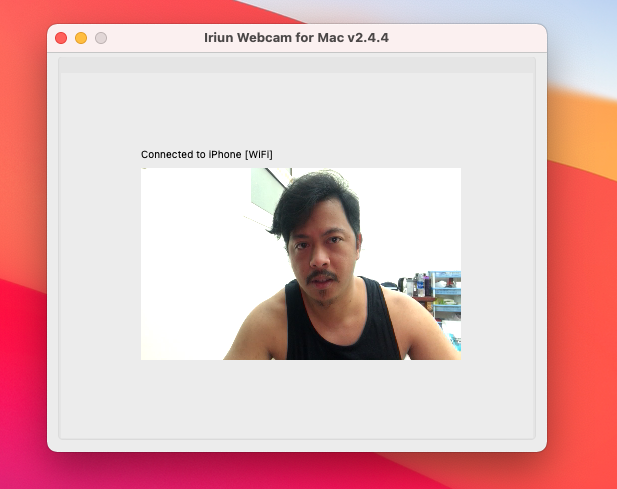
Viewfinder from the iPhone camera.
Choose Iruin as your web camera on different communicating apps. You will see in my screenshot below that I can switch the video feed from Mac’s native webcam to my iPhone camera.
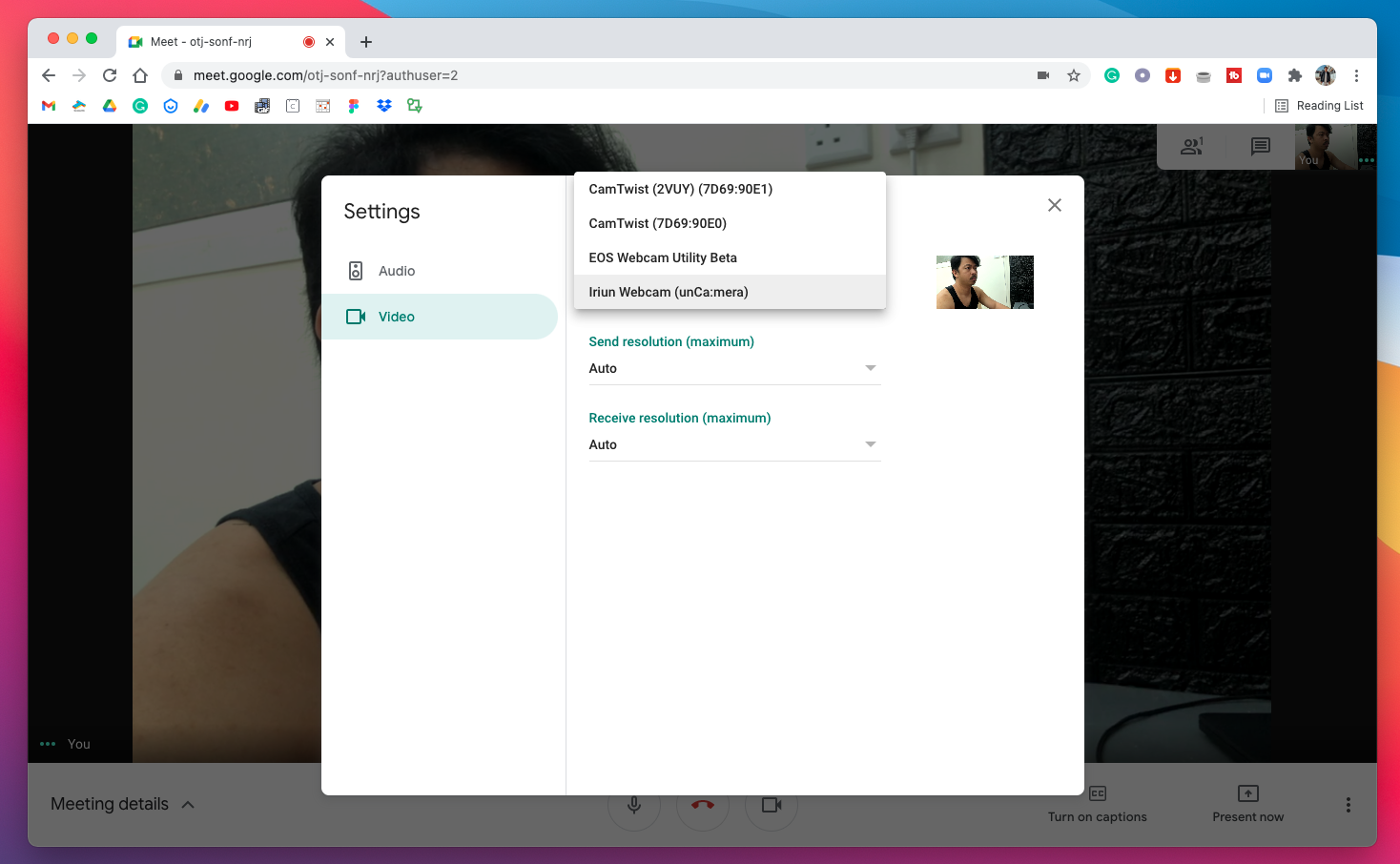
Google Meet in a Chrome internet browser.
For a long period of calls, I highly suggest that you connect your iPhone to a power source so that you will not be interrupted during a video conference.